Inside Git: How It Works and the Role of the .git Folder
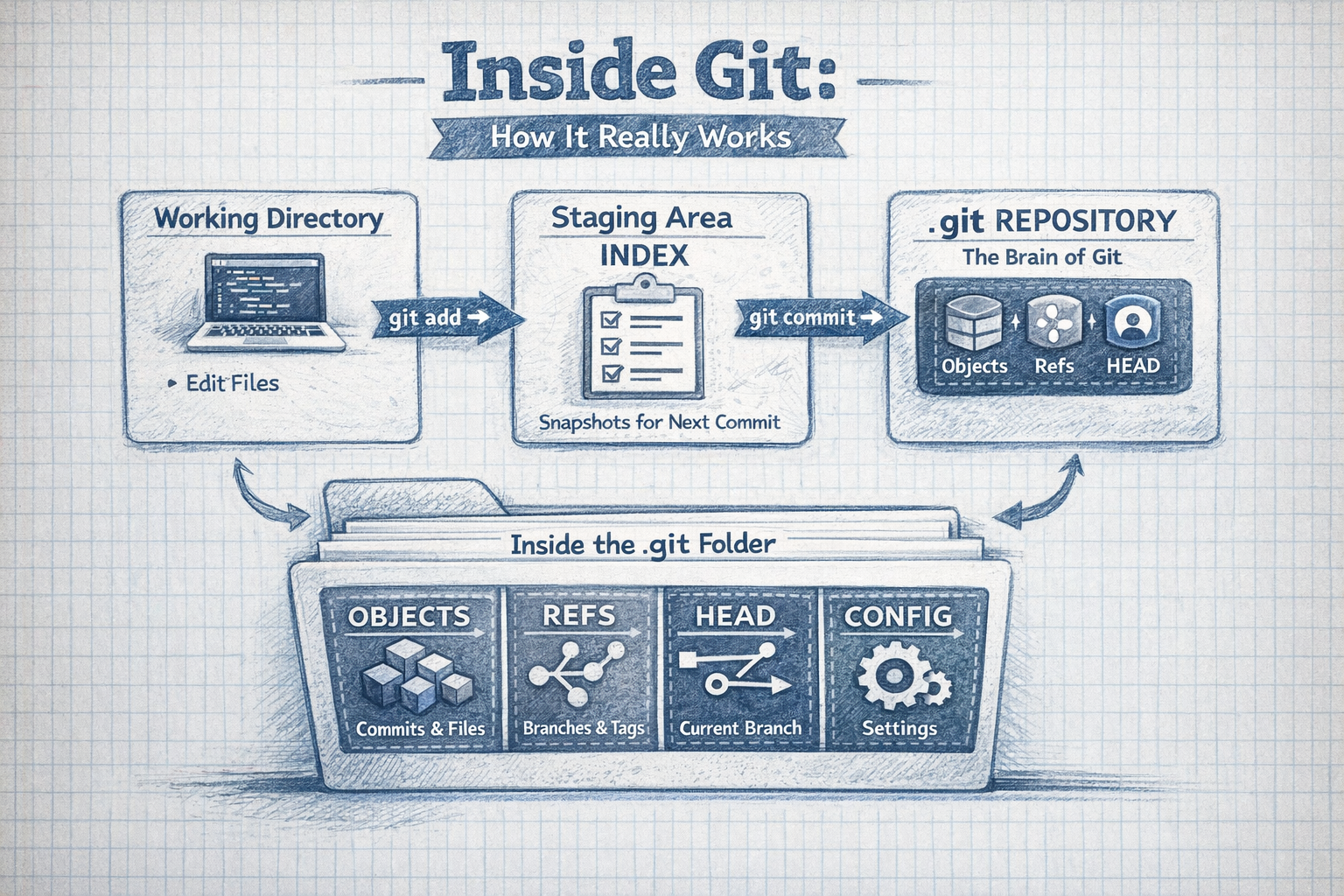
How Git Actually Works Internally (Beyond git add, git commit, and git push)
Most developers use Git every day, but few understand what’s really happening under the hood. Let’s break it down—no memorization, just mental models.
1. What Happens When You Run git init
When you run:
git init
Git creates a hidden folder called .git. This is the brain of your repository.
All commits live here
All branches live here
Your entire project history lives here
Warning: If you delete
.git, your project becomes a normal folder—all Git history is lost.
2. Inside the .git Folder: The Core Structure

Here’s what’s inside .git and why it matters:
| Folder/File | Purpose |
objects/ | Stores all your data (files, folders, commits) as hash-named objects |
refs/ | Stores branch and tag pointers (where each branch is pointing) |
HEAD | Points to your current branch (like a bookmark) |
index | The staging area (what you’re about to commit) |
config | Repository settings (user info, remotes, etc.) |
hooks/ | Scripts that run at certain Git events (pre-commit, post-merge, etc.) |
3. objects/: Where Git Stores Everything

Git doesn’t store file changes—it stores snapshots.
Each object is stored as a hash-named file (e.g.,
ab/12cd34...).There are three types of objects:
3.1 Blob: File Content (No Name, No Path)
Stores only the content of a file.
Same content = same blob (reused to save space).
No filename, no folder path—just raw data.
3.2 Tree: Folder Structure
Represents a directory.
Contains pointers to blobs (files) and other trees (subdirectories).
Example:
  Tree (root)
  ├── index.js → Blob
  └── src/     → Tree
      └── app.js → Blob
3.3 Commit: A Snapshot in Time
Points to a tree (snapshot of your project).
Contains:
Parent commit(s)
Author, date, and commit message
Does not store code—just references to trees and blobs.
4. refs/: Branch Pointers
Branches are just pointers to commits.
refs/heads/main→abc123(commit hash)When you commit, the branch pointer moves forward.
Commits never change—only pointers move.
5. HEAD: Your Current Position
HEADis a file that points to your current branch.Example:
HEAD → main → abc123 (commit)When you switch branches,
HEADmoves.
6. index: The Staging Area
The
indexis wheregit addputs files.It’s a preview of your next commit.
When you run:
git add file.jsGit:
Takes a snapshot of
file.jsStores it as a blob in
objects/Updates the
index
7. What Happens During git ad

Working Directory
       ↓
   git add
       ↓
   Blob (file content)
       ↓
   Index (staging area)
- Git reads the file, creates a blob, and updates the index.
8. What Happens During git commit
Index
   ↓
Tree (snapshot)
   ↓
Commit (points to tree + parent)
   ↓
Branch pointer updated
   ↓
HEAD moves
Git creates a tree from the index.
Creates a commit pointing to the tree.
Updates the branch pointer and moves
HEAD.
9. How Git Uses Hashes (Data Safety)
Git is content-addressable: same content = same hash.
Any change = new hash.
Commits reference parent hashes.
If history is altered, hashes break—Git detects tampering.
10. How Git Tracks Changes (Mental Model)
Git does not track changes line by line.
Instead:
Stores snapshots of your project.
Reuses unchanged files (saves space).
Only stores what’s new or changed.
11. Simple Sketch: The Git Flow
Working Directory
       ↓
   Staging Area (index)
       ↓
   .git Repository
       ├── objects/ (blobs, trees, commits)
       ├── refs/ (branch pointers)
       └── HEAD (current position)
12. Final Mental Model
Edit a file
git add→ snapshot → indexgit commit→ tree → commit → branch movesgit push→ uploads objects and refs to remote
Remember:
You’re not just saving code—you’re creating snapshots.
You’re moving pointers, not files.
Git is a database, not just a version control tool.
13. Why This Matters
Understanding Git’s internals:
Makes commands less magical.
Helps you debug issues (lost commits, merge conflicts).
Lets you use Git with confidence.
Next time you run:
git commit -m "fix bug"
You’ll know:
You’re creating a snapshot.
You’re moving a pointer.
You’re working with a content-addressable database.