Git for Beginners: Basics and Essential Commands
1. What is Git?
Git is a distributed version control system. Think of it as a time machine for your code:
It tracks every change you make to your files.
It lets you save different versions of your project.
It helps teams work together without overwriting each other’s work.
Key Point: Git is not GitHub/GitLab—those are online platforms that host Git repositories.
2. Why Use Git?
Track Changes: See who made what change and when.
Collaborate: Work with others on the same project without conflicts.
Backup: Never lose code—restore old versions anytime.
Experiment: Try new ideas in branches; discard or merge them later.
3. Git Basics: Core Terms
| Term | What It Means |
| Repository (Repo) | Your project folder where Git tracks changes. |
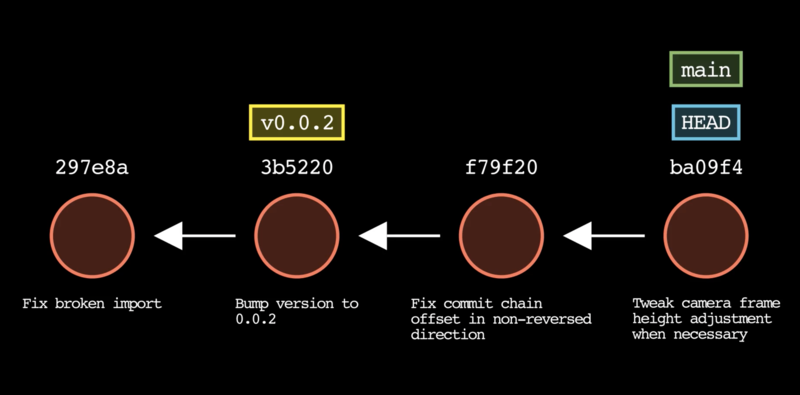
| Commit | A saved snapshot of your project at a point in time. |
| Branch | A parallel version of your project (e.g., main, feature/login). |
| HEAD | A pointer to your current branch/commit (like a bookmark). |
| Stage | Preparing changes to be committed (using git add). |
| Remote | A copy of your repo on a server (e.g., GitHub). |
4. Essential Git Commands
Start a Project
git init # Turns your folder into a Git repo

Check Status
git status

Save Changes
    git add file.txt  # Stage a file for commit
    git add .         # Stage all changes
    git commit -m "Fixed login bug"  # Save changes with a message
View History
    git log           # See all commits (press 'q' to exit)
    git log --oneline # Compact view
Work with Branches
    git branch        # List all branches
    git branch new-feature  # Create a new branch
    git checkout new-feature  # Switch to that branch
Connect to Remote (GitHub/GitLab)
    git remote add origin https://github.com/your-repo.git
    git push -u origin main  # Upload your code
5. Basic Developer Workflow (Step-by-Step)

Start a Project:
 mkdir my-project
 cd my-project
 git init
Make Changes:
- Edit
index.htmlandstyle.css.
- Edit
Stage & Commit:
 git add .
 git commit -m "Added homepage styling"
Create a Branch (for new features):
 git branch add-login
 git checkout add-login
Push to Remote (GitHub):
git push origin add-loginMerge Changes (after review):
 git checkout main
 git merge add-login
6. Pro Tips for Beginners
Commit Often: Small, frequent commits are easier to track.
Write Good Messages: Use clear, descriptive commit messages (e.g., "Fix login button alignment" instead of "fixed bug").
Pull Before Push: Always run
git pullbefore pushing to avoid conflicts.Use
.gitignore: Tell Git to ignore files (likenode_modules/or.env).
7. Common Mistakes & Fixes
| Mistake | Fix |
| Forgot to stage a file | git add forgotten-file.txt then commit again. |
| Wrong commit message | git commit --amend to edit the last commit. |
Accidental commit to main | Create a new branch and reset main: git branch temp; git reset --hard HEAD~1 |
8. Summary: Git in One Paragraph
Git is your code’s safety net. It lets you save versions, experiment in branches, and collaborate with others. Start with init, add, commit, and push—everything else builds on these. Practice on small projects first!